Your results
Make sense of your hair results.
Understand the face-shape report, hairstyle recommendations and hair-color suggestions in your app.
Start with your face-shape report
Open Face Analysis and look for FACE SHAPE. The face-shape label appears below your photo. The Oval label in our illustration is a demo example; your own report can show a different result.
Further down, the report explains facial proportions under How it Works and Why It Matters. Read these explanations alongside the images.
Reading Face Analysis
What the ratios compare.
- Length / Cheek Width Ratio
- Compares face length with cheekbone width.
- Jaw / Cheek Width Ratio
- Compares jaw width with cheekbone width.
- Forehead / Cheek Width Ratio
- Compares upper-face width with cheekbone width.
A look at your results
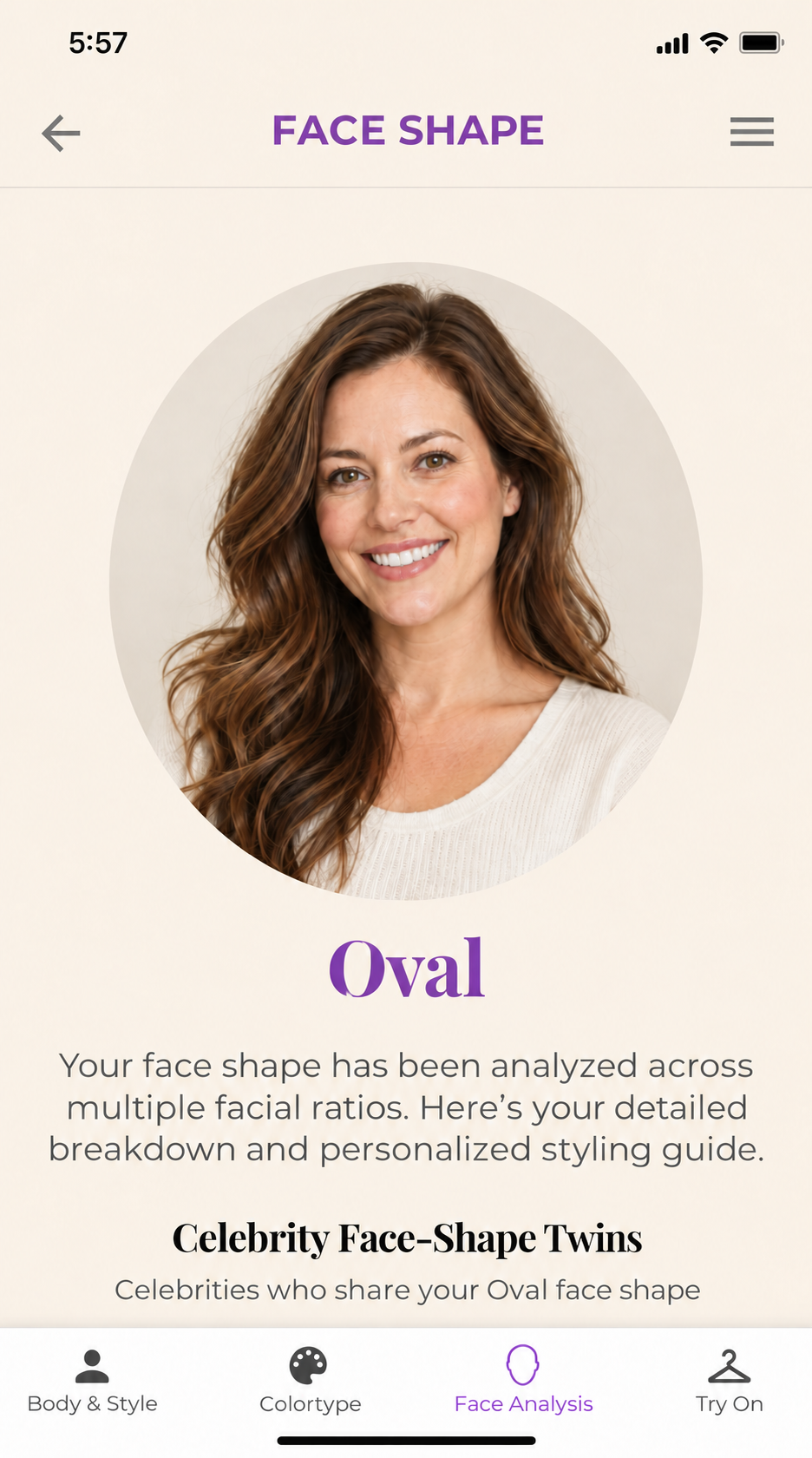
Find your face shape.
In Face Analysis, your face shape appears below your photo. Scroll down to explore the facial proportions and hairstyle recommendations.
Find the recommendations for your hair
In Face Analysis, find Your Personal 5 Hairstyles and Why These Styles Work for You. Read the explanation before choosing a style. The More Styles section provides additional options for your face shape.
For hair colors, open Color Type (or Colortype) and find Best Hair Colors For You. Read the shade names below the cards. These are recommendations to explore, not instructions to dye your hair a particular color.
Treat previews as inspiration
An AI preview helps you explore an idea. It is not a guarantee of how a haircut or color will look in real life.
Choose what to explore next
Use the recommendations as a starting point. Try a hairstyle or hair color that interests you, and keep your own preferences in the decision.